
How to Cap FiveM FPS Through NVIDIA GeForce Experience
Capping your Frames Per Second (FPS) in FiveM using NVIDIA GeForce Experience is a straightforward way to optimize your gaming experience. It involves setting a limit on the number of frames your graphics card renders per second, leading to smoother gameplay and reduced strain on your system. This is achieved through the NVIDIA GeForce Experience software, which allows you to fine-tune your game settings.
“NyroTech Arena publishes gaming technology guides reviewed for accuracy, clarity, and real world relevance. Our recommendations are shaped by hands on experience and careful research to ensure reliable guidance for gamers locally and worldwide.”
Why Cap Your FPS in FiveM?
Capping your FPS in FiveM offers several advantages that significantly enhance your gaming experience. An uncapped frame rate can lead to screen tearing if your monitor’s refresh rate doesn’t synchronize with the GPU’s output. By implementing an FiveM FPS cap, you ensure smoother visuals and eliminate distracting visual artifacts.
Furthermore, limiting your FPS reduces the load on your graphics card. This is particularly beneficial as it lowers GPU usage, translating to reduced heat generation and quieter fan operation. This also contributes to improved system stability, preventing resources from being overused and promoting better overall performance. For laptop users or those mindful of energy consumption, capping your FPS can also lead to better power efficiency.
What You’ll Need
Before you begin capping your FiveM FPS through NVIDIA GeForce Experience, ensure you have the following:
- FiveM: The game client installed and functioning correctly.
- NVIDIA Graphics Card: A compatible NVIDIA graphics card is essential.
- Up-to-date GeForce Drivers: Ensure your GeForce Drivers are up to date for optimal performance and compatibility. You can update these through the NVIDIA GeForce Experience application.
- NVIDIA GeForce Experience: This software is required to access the necessary settings. If you don’t have it, download it from the NVIDIA website.
Step-by-Step Guide to Capping FPS in FiveM via NVIDIA
Here’s a detailed guide on how to cap your FiveM FPS using NVIDIA GeForce Experience. This method uses the NVIDIA Control Panel for precise control over your frame rate.
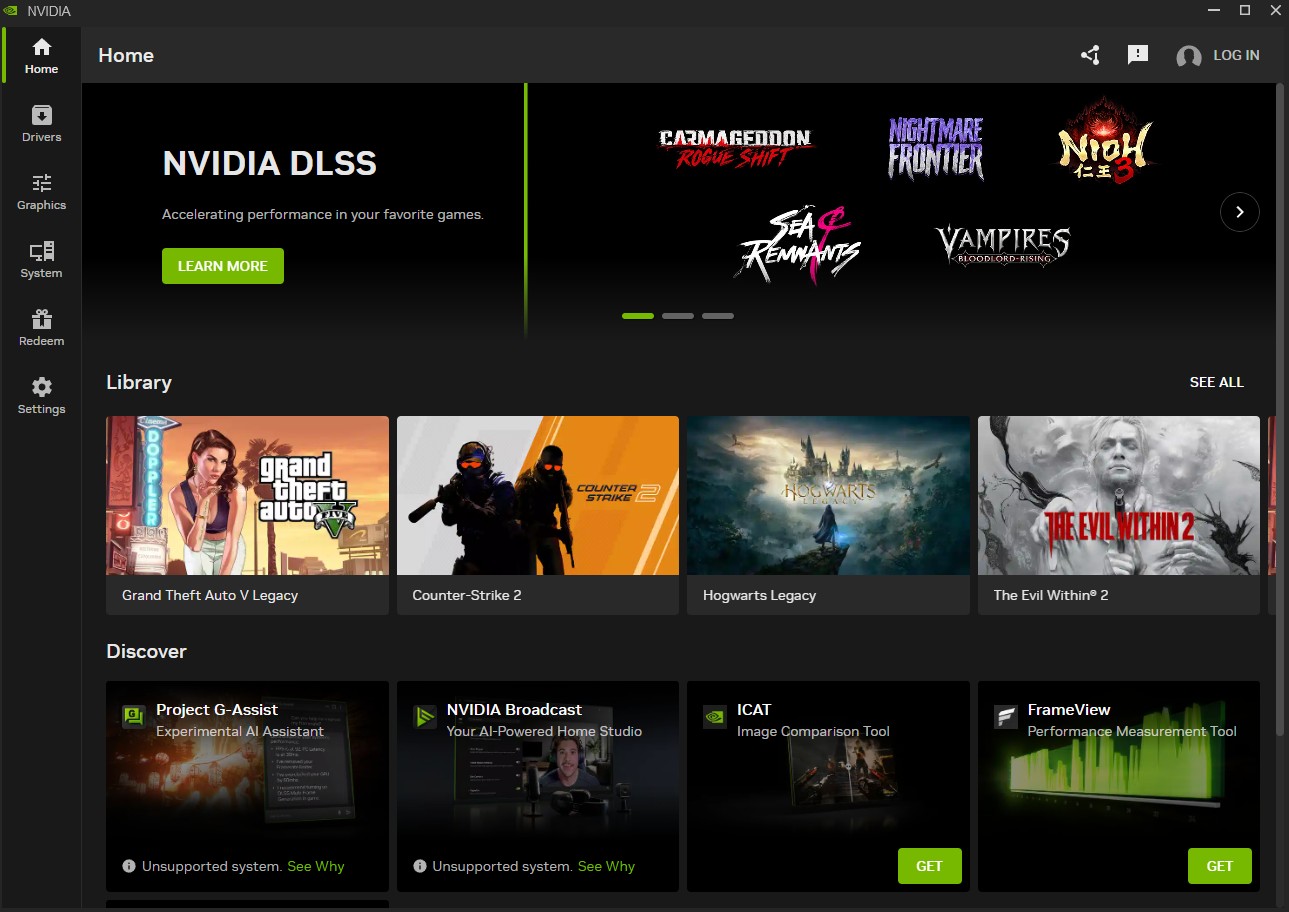
Step 1: Open NVIDIA Control Panel
The NVIDIA Control Panel is where you’ll configure the FPS limit.
- Right-click on your desktop.
- Select NVIDIA Control Panel from the context menu.
Step 2: Adjust Global or Program-Specific Settings
You can apply the FPS cap globally (affecting all games) or specifically to FiveM.
- In the NVIDIA Control Panel, navigate to Manage 3D settings.
- Choose the Program Settings tab to configure settings specifically for FiveM.
- Click Add to select FiveM from the list of programs. If FiveM isn’t listed, click Browse and locate the FiveM executable file (usually in your AppData or installation directory).
Step 3: Enable Max Frame Rate Setting
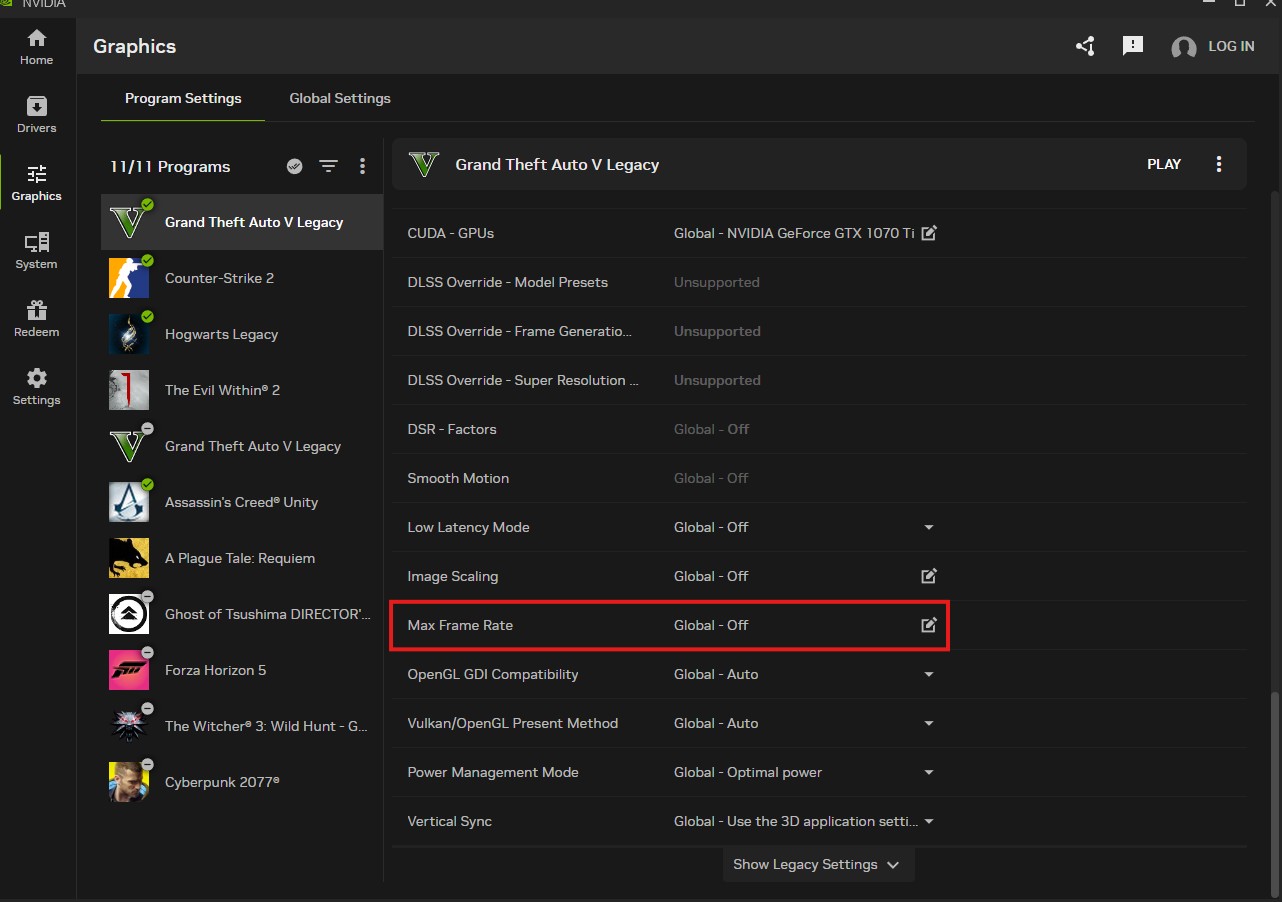
Now, enable the Max Frame Rate setting and set your desired FPS limit.
- In the settings list for FiveM, scroll down to find Max Frame Rate.
- Click on Max Frame Rate and set it to On.
- Choose your desired FPS limit. A common choice is 60 FPS for stable performance, but you can adjust this based on your monitor’s refresh rate (more on this later). For example, for a 144Hz monitor, a limit of 142 FPS can help avoid stuttering.
- Click Apply to save your changes.
Step 4: Launch FiveM and Test
After configuring the FPS cap, launch FiveM to verify the results.
- Launch FiveM as you normally would.
- Enable an FPS counter. You can use the Steam Overlay, GeForce Experience’s overlay (press Alt+Z and enable the performance overlay), or other third-party tools.
- Play the game for about 10-15 minutes, observing the frame rate, temperature, and overall smoothness.
If everything looks good, you’ve successfully capped your FPS in FiveM without external software.
Optional: Cap FPS Using NVIDIA GeForce Experience Overlay (Experimental)
An alternative method, though less precise, involves using the NVIDIA GeForce Experience overlay:
- Press Alt + Z to open the GeForce Experience overlay.
- Click on Settings (the gear icon), then Performance.
- In the Tuning area, enable Automatic Tuning.
This method provides a basic level of FPS control, but the NVIDIA Control Panel method offers more accuracy and consistency.
What FPS Cap Is Best for FiveM?
The ideal FPS cap depends on your monitor’s refresh rate and your hardware capabilities:
- 60Hz Monitor: Cap your FPS at 59 or 60 for optimal synchronization.
- 75Hz Monitor: Aim for an FPS cap around 75.
- 144Hz Monitor: Cap your FPS between 140 and 144.
- G-SYNC or FreeSync: If you have a monitor with G-SYNC or FreeSync, experiment with capping your FPS slightly below the monitor’s maximum refresh rate for the smoothest experience.
Keep in mind that FiveM performance can vary depending on the server, scripts, and connection quality. While capping FPS is a good starting point, other factors may contribute to stuttering or lag.
Pro Tips for Better FiveM Performance
In addition to capping your FPS, consider these tips to further optimize your FiveM experience:
- Close Background Programs: Close any unnecessary programs consuming CPU or RAM, especially resource-intensive applications like Chrome and Discord overlays.
- Update GeForce Drivers: Regularly update your NVIDIA GeForce Drivers through the GeForce Experience application for performance improvements and bug fixes.
- Run FiveM as Administrator: Running FiveM as administrator can sometimes improve input response.
- Disable Windows Game Mode/Xbox Game Bar: Disabling these features can improve resource allocation and reduce conflicts.
- Adjust In-Game Settings: Experiment with lowering in-game settings such as texture quality and resolution, especially on busy servers.
- Optimize Power Management: In the NVIDIA Control Panel, set Power Management Mode to “Prefer Maximum Performance” for FiveM to ensure the GPU runs at its highest clock speeds.
- Enable NVIDIA Reflex Low Latency: If supported by your hardware, enabling NVIDIA Reflex Low Latency can reduce input lag and improve responsiveness.
Final Thoughts
Achieving the right FiveM FPS cap can greatly improve your gaming experience. By using NVIDIA GeForce Experience and the NVIDIA Control Panel, you can fine-tune your game settings for optimal performance, reduce screen tearing, and minimize system strain. These adjustments are simple, effective, and easily reversible, making them a valuable tool for any FiveM player with an NVIDIA graphics card.
Frequently Asked Questions
Q: Does capping FPS reduce graphics quality?
No, capping FPS only limits the number of frames rendered per second and does not affect texture quality, resolution, or other rendering features.
Q: Will this cause input lag?
When capped correctly (close to your monitor’s refresh rate), input lag is minimal and can even be reduced by ensuring more consistent frame times.
Q: Can I use RTSS (RivaTuner Statistics Server) instead?
Yes, RTSS is a more advanced option for FPS capping, but NVIDIA GeForce Experience and Control Panel offer a user-friendly, integrated solution.
Q: Does this method work for other games?
Yes, you can apply the same process to any game by adding its executable file in the NVIDIA Control Panel’s Program Settings.
Conclusion
Capping your FiveM FPS through NVIDIA GeForce Experience is a valuable technique for optimizing your gaming performance. By preventing screen tearing, reducing GPU strain, and improving system stability, an FiveM FPS cap ensures a smoother and more enjoyable experience.
The process mainly involves using the NVIDIA Control Panel, accessed through NVIDIA GeForce Experience, to adjust either global or program-specific settings, enabling the Max Frame Rate setting, and then launching FiveM to test the changes.
Optionally, you can use the NVIDIA GeForce Experience overlay for experimental FPS capping. By following these steps and experimenting with different FPS limits, you can fine-tune your FiveM game settings for optimal performance and enjoy a smoother, more responsive gaming experience.